


Homes.com Real Estate & Rent
4.73.05K Reviews
App Specs
- Version
- 18.8.0
- Updated On
- License
- Free
- Downloads
- 1,000,000+
- Developer
- CoStar Homes.com Android Team
- Categories
- House & Home
- Platform
- Android, iOS
Screenshots






 Analysis by AppCompare
When I first open a home-search app, I don’t expect it to make a big decision for me. I want it to turn a vague idea—“somewhere closer to work” or “a little more space”—into a manageable set of places to consider. That is the role Homes.com Real Estate Search fills for me: it brings property browsing, maps, and practical planning tools into one place, while leaving the important calls to my own judgment.
What to expect from a home search
Homes.com is a free House & Home app from CoStar Homes.com Android Team. It is intended for people looking at homes, rentals, agents, and schools, so it can be useful before you know exactly which route you’ll take. The app is rated for Everyone, and its current version is 17.5.0. It has a 4.7 average from around 19,000 ratings and over a million installs, which gives a new user a sense that it has found a sizeable audience without telling you whether any particular listing will suit your needs.
The main thing to expect is a search experience rather than a substitute for a buyer’s agent, a lender, or a visit in person. You can use filters to narrow properties by location, price, square footage, bedrooms, and bathrooms, then look at the remaining choices on a map or open individual listings. That is a helpful way to move from broad browsing to a shortlist. It is also worth remembering that photos and listing details are starting points: they can help you decide what deserves attention, but they cannot tell you how a room feels, how noisy a street is, or whether a commute works at the time you actually travel.
For a first-time user, this is reassuringly concrete. You don’t need a polished budget or a complete list of requirements before you begin. Start with one area and a couple of non-negotiables, then see what the search turns up. The app works best when you treat those first results as information about the local market, not as a final answer.
Set up a search that reflects real life
When I begin, I would choose the location first, then set a comfortable price range and only a few filters that genuinely matter. It can be tempting to select every preference straight away, but a long list of requirements can hide homes that are worth a second look. For instance, if an extra bedroom is desirable but not essential, I would leave that filter open at first and compare the trade-off against location or price.
Think about the routine the home needs to support. Someone working from home may care more about a usable extra room than a shorter distance to an office; a household with children may want to inspect school boundaries as part of its area research. The map view helps connect a property to its surroundings, while the school-district information can give families a useful starting point. I would still check details that affect an actual decision with the relevant local sources, rather than treating an app map as the only word on a boundary.
If you are only exploring, you can use the app to understand what different areas and price ranges bring up before you commit to a narrow search. If you are ready to move, save candidates as you go so you can revisit them without relying on memory. A useful habit is to keep a short mental distinction between “worth seeing” and “looks appealing in photos.” That stops an attractive listing from becoming an assumed favorite before you have checked its practical fit.
Worth Reading Before You Choose

EA SPORTS FC Mobile 26 Is a Bigger Football Game, but It Takes Time

Flipboard Shows What News Apps Must Do Beyond the Feed

Switching to Android Auto Means Rethinking Your Driving Routine

Google Calendar Makes a Crowded Week Easier to Manage

Ludo King Makes the Most of the Minutes Between Plans

Baby Panda World Brings Quick Play to Modern Phones, but Its Game Library Feels Busy
Getting to the first useful result
A realistic first session might begin on a lunch break: I enter the part of town I can realistically reach, set a price ceiling, and scan the map rather than opening every result in a long list. I save a few homes that seem plausible, then compare their details later when I have more time. That is a meaningful first success—not finding a dream home in minutes, but turning a broad search into a small set of options I can investigate.
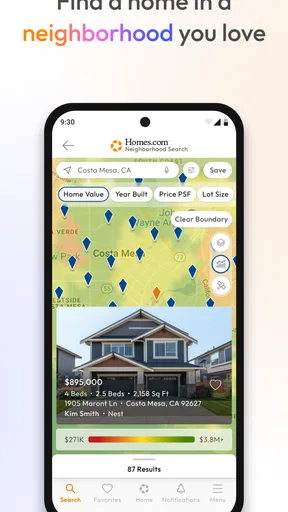
The map is especially useful when location matters as much as the property itself. Zooming and moving around can reveal how listings are distributed across nearby areas, while a list-only approach can make each home feel disconnected from its setting. I would use the map to spot areas worth exploring, then open individual listings to check the information and photos. A boundary or pin is not a substitute for testing a route at the time of day you would use it, but it can help you decide which routes and neighborhoods deserve that test.
Saving listings also makes comparison less dependent on a first impression. When I return to saved homes, I can ask the same questions of each one: Is the location workable? Does the room count fit the household? Is the asking price within the range I planned to investigate? This is a simple workflow, but it reduces the chance of confusing “memorable” with “best fit.” It is particularly useful when you are browsing in short sessions and don’t want to restart your search each time.
Using the tools with a clear head
Have you ever been on the hunt for a new home and felt completely overwhelmed by the options? Yeah, me too. That’s where Homes.com Real Estate Search comes in, making the whole process feel like a walk in the park. I’ve been playing around with this app for a bit, and I gotta say, it’s like having a real estate agent in your pocket.
First off, the user interface is super slick. Whether you’re an Android or iOS user, you’re going to love how intuitive it feels. You can easily search for homes based on location, price range, square footage, or even the number of bedrooms and bathrooms. If you’re anything like me, you’ll appreciate how you can filter down to the tiniest detail. It's all about finding what suits your needs, right?
One feature that really stands out is the map search. It’s not just your average map; it’s interactive and shows you listings in real-time as you zoom in or out. Plus, the school district boundaries are a great touch for those of us with kids. No need for extra research—everything is right there at your fingertips.
Photos and more
The app doesn’t skimp on visuals either. Each listing is packed with high-quality images, so you know exactly what you’re getting into before stepping foot inside. And if you’re curious about the neighborhood vibe, the detailed property info and community insights are just a tap away. It’s like getting the scoop from a friendly neighbor.
You can also save your favorite listings and come back to them anytime. It’s super handy for those marathon house-hunting days when you just need a break but don’t want to lose track of that perfect home you stumbled upon.
Making life easier
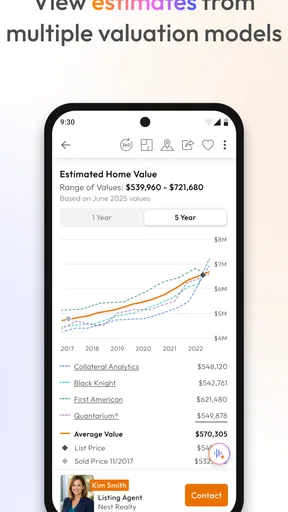
One of the coolest features of Homes.com Real Estate Search is the affordability calculator. It’s a game-changer for anyone trying to figure out what they can realistically afford. Just plug in your financial details, and it’ll give you a solid estimate. It’s like having a financial advisor in your back pocket.
And let’s not forget about the mortgage calculator—it’s detailed yet straightforward. Planning your budget has never been easier. Trust me, if you’re serious about buying, these tools will become your best friends.
Reading estimates as estimates
I find affordability and mortgage calculators most helpful as ways to compare scenarios, not as approval decisions. A small change to the figures you enter can change the estimate, so I would use the result to ask better questions: Does this price still look comfortable if I leave room for other household expenses? Would a less expensive home in a different area make the monthly picture feel more manageable? Those are useful comparisons to make while browsing.
For a first-time buyer, the practical next step is to take any promising estimate to a lender or qualified professional before treating it as a budget commitment. The app’s calculator can help you frame the conversation, but a calculation on a phone is not the same as a personalized assessment of your finances. Renters, meanwhile, can still benefit from the search and saved-listing workflow even if buying tools are not relevant to their immediate plans.
One less obvious trade-off is that detailed filters can create a false sense of certainty. A listing that fits the numbers may still be a poor match once you consider the layout, condition, surrounding streets, or your everyday travel. I would use filters to remove obvious mismatches, then loosen them when the result set feels unexpectedly thin. That second pass can reveal alternatives you might have excluded for a preference that was never truly essential.
Where it fits among other search options
Compared with checking property listings through a general web search or a series of separate pages, this app keeps the map, property information, saved options, and planning calculators close together. That is its strongest practical advantage for someone who wants to browse and organize in one place. A property portal with a different local focus may be a better second check if you are comparing coverage in a particular area, while direct conversations with agents and in-person visits matter once you are ready to verify a home.
I would not rely on any one search app as the sole source of truth. Listings can change, and a polished photo set cannot resolve questions about condition or noise. Use Homes.com to build a shortlist and understand the choices you want to explore; then confirm the details that affect your decision through current listing information and the people involved in the transaction. This is a sensible division of labor, not a weakness unique to this app.
The app is a good fit for first-time searchers who want to learn what is available, people comparing neighborhoods, and households that need a straightforward way to keep candidate homes together. It is less suitable for someone expecting it to settle affordability, verify every property detail, or replace professional advice. If you already know precisely what you need and prefer working directly with a local agent, you may spend less time browsing than someone who is still shaping their requirements.
Common points of confusion
One easy mistake is to read a map result as a complete picture of a neighborhood. The map helps you see where a property sits and can make school boundaries easier to consider, but it cannot tell you how the area feels at different times or whether your own daily route is convenient. I would use it to decide what to investigate, then check the location in person when possible.
Another is treating the affordability calculator and mortgage calculator as interchangeable with a lender’s numbers. They are useful for planning and comparing, but a rough estimate should not become a promise about what you can borrow or comfortably pay. If the numbers are close to your limit, I would be especially cautious and seek a more complete budget review before making an offer or changing plans.
People also sometimes browse too broadly and save too many homes to compare meaningfully. I would revisit saved listings in small groups and note why each one made the cut: location, room layout, or price. If you cannot name a reason beyond “it looked nice,” it may not deserve priority. This little check makes saved homes more useful than a growing collection of attractive photos.
Who should try it—and what to do next
Homes.com has been around since September 10, 2012, and the app is free to download, so it is easy to try as an early research tool without turning the first search into a major commitment. It is a particularly practical choice if you want to explore both homes and rentals, compare locations visually, or save a handful of possibilities while you work out what matters most. The minimum operating-system requirement is version 10, so it is worth checking that your device meets it before getting started.
If you are ready to begin, I would start with one realistic location and a loose budget, inspect the map, and save only a few candidates that meet your genuine needs. Then revisit their listing details and use the calculators to explore—not certify—your budget. If nothing looks right, adjust one filter at a time rather than changing everything at once; that makes it easier to see whether location, price, or a preference is limiting the search.
Final thoughts
In a world where finding a home can feel like searching for a needle in a haystack, Homes.com makes it a lot less daunting. It’s packed with features that cater to both casual browsers and serious buyers. The app simplifies the search process, and with all the detailed information at your disposal, making informed decisions becomes a breeze.
So, if you’re on the lookout for a new place, why not give it a shot? It’s free, easy to use, and might just be the tool you need to find your dream home. Happy house hunting!
Pros
- User-friendly interface enhances navigation.
- Comprehensive property listings available.
- Advanced search filters save time.
- Detailed neighborhood insights provided.
- Fast loading times for quick access.
Cons
- Limited international property options.
- Occasional glitches in map view.
- Requires constant internet connection.
- Notifications can be overwhelming.
- Some listings lack updated information.
FAQs for Homes.com Real Estate & Rent
What features does the Homes.com Real Estate Search app offer?
The Homes.com Real Estate Search app offers a comprehensive suite of features including advanced search filters, real-time property listings, interactive maps, and virtual tours. Users can also save their favorite properties, receive personalized alerts, and connect directly with real estate agents, making it a robust tool for both buyers and sellers.
Is the Homes.com app free to use, and are there any in-app purchases?
Yes, the Homes.com Real Estate Search app is free to download and use. While the app provides a wide array of features at no cost, there might be some optional in-app purchases or subscription services for enhanced features or premium content. Always check the app store for the latest details on pricing.
Can I use the Homes.com app to search for rental properties?
Absolutely. The Homes.com app allows users to search not only for homes to purchase but also for rental properties. With customizable search filters, users can easily find apartments, condos, and houses for rent in their desired locations, making it versatile for various housing needs.
How accurate are the property listings on the Homes.com app?
Property listings on the Homes.com app are updated frequently to ensure accuracy and reliability. The app aggregates data from multiple sources, including MLS listings and direct feeds from real estate agents, providing users with up-to-date information on available properties in their chosen areas.
Is the Homes.com app available on both Android and iOS devices?
Yes, the Homes.com Real Estate Search app is available on both Android and iOS platforms. Users can download the app from the Google Play Store or the Apple App Store, ensuring compatibility with a wide range of smartphones and tablets for convenient access to real estate information.


